Granularscatter is a grain cloud insert by UDI DSP.
01 What Granularscatter is
Put Granularscatter after anything — a reverb, a delay, a pad, a vocal, a drum loop — and it scatters what it hears into a cloud of grains: tiny slices of the last few seconds, replayed overlapping, each with its own moment, length, pitch, direction and place in the stereo field.
It is built on the grain engine at the heart of UDI DSP’s Ghostlight Pro reverb, taken out of the reverb and given the controls a grain instrument needs.
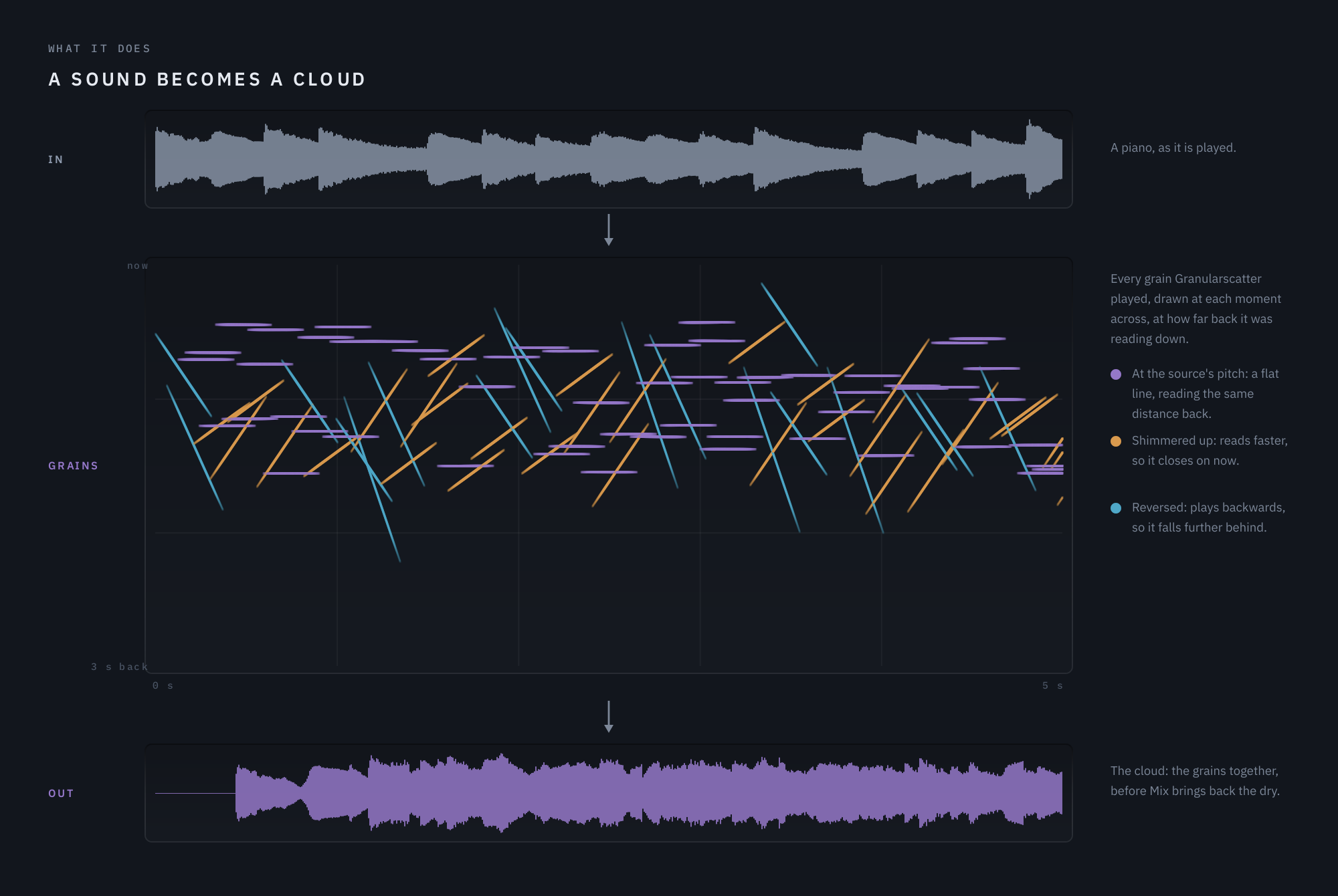
The picture above is Granularscatter running on five seconds of piano. In the middle, every grain it played is drawn as a line: across is when it played, down is how far back in the recording it was reading. A grain at the piano’s own pitch reads at the speed it was recorded, so it keeps the same distance behind now and draws a flat line. A shimmered grain reads faster and closes in on now; a reversed one plays backwards and falls further behind.
The idea behind every control
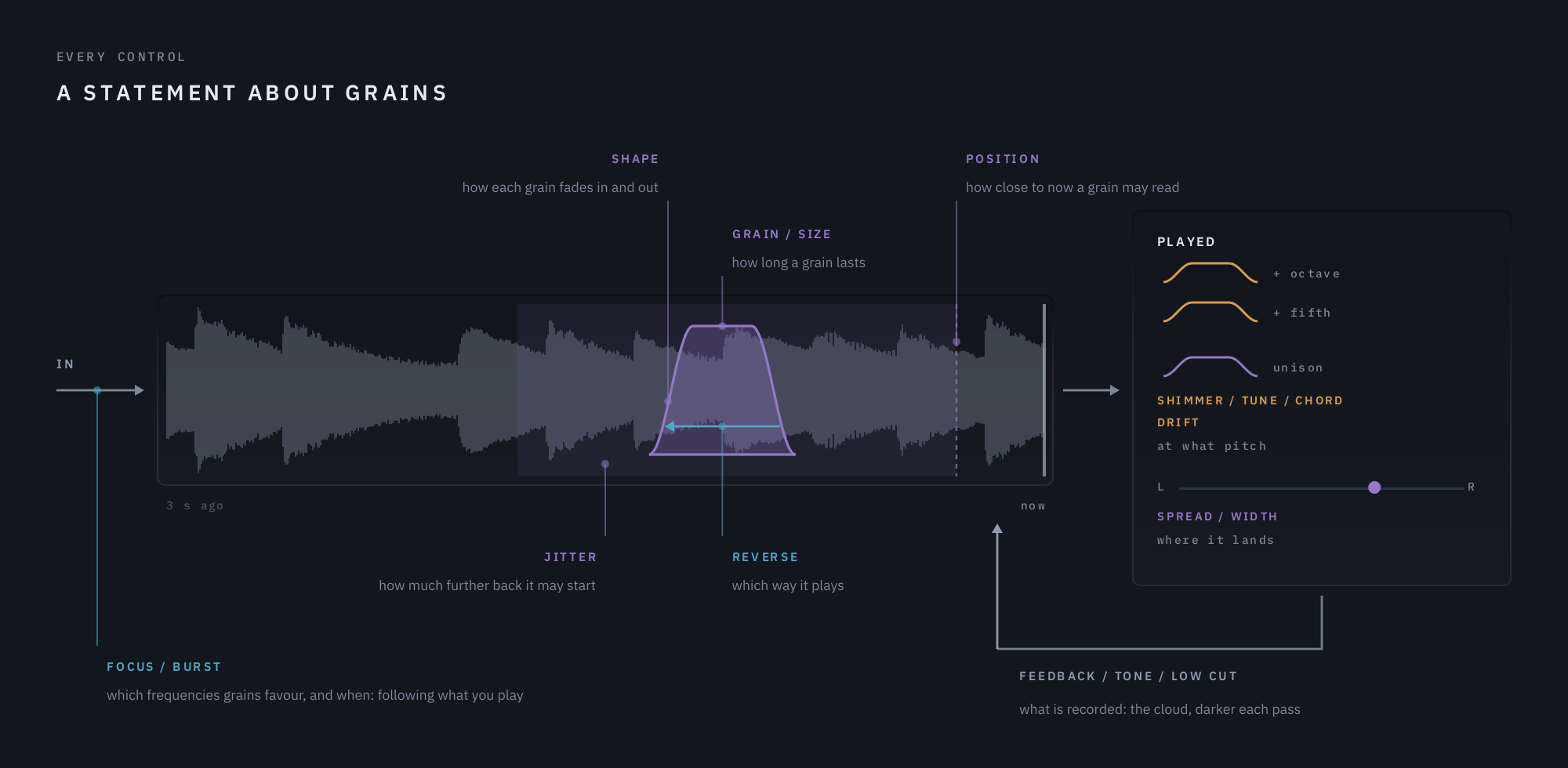
Every control is a statement about grains: what they are cut from, where in time they are cut, how long they last, how many there are, what pitch they sound at, and where they land.
- Position and Jitter say where in time. Grain and Density say how long and how many.
- Shimmer, Tune, Chord and Drift say what pitch.
- Spread and Width say where they land. Reverse and Repeat say how they play.
- Focus and Burst make the grains follow what you play: which frequencies, and when.
- Feedback, Tone and Low Cut say what the grains are cut from — including the cloud itself.
That rule is also why some things are not here. A reverb, a filter section, a distortion: each would be easy to add, and none is a statement about grains.
At a glance
- Made to sit on top of other effects. After a reverb or delay it grows a shimmering cloud out of the tail; on a dry source, Position and Jitter keep the cloud on the playing.
- Harmony clouds. Chord makes shimmered grains pick notes of a chord stacked on Tune — a fifth, octaves, major, minor, sus and sevenths.
- Rhythmic grains. Density’s note button locks grains to your project’s grid; Repeat turns them into stutters.
- Feedback that always ends. The cloud can ring on after you stop, but it can never grow louder than what you played, and it always dies away.
- It follows the playing. Focus draws grains from the loud or the quiet frequencies of what you play; Burst makes each new note scatter.
- A display that shows the grains themselves, where in the past each one is reading and at what pitch.
02 How grains work
You don’t need any of this to use Granularscatter, but it makes every control obvious.
A grain is a slice of the past
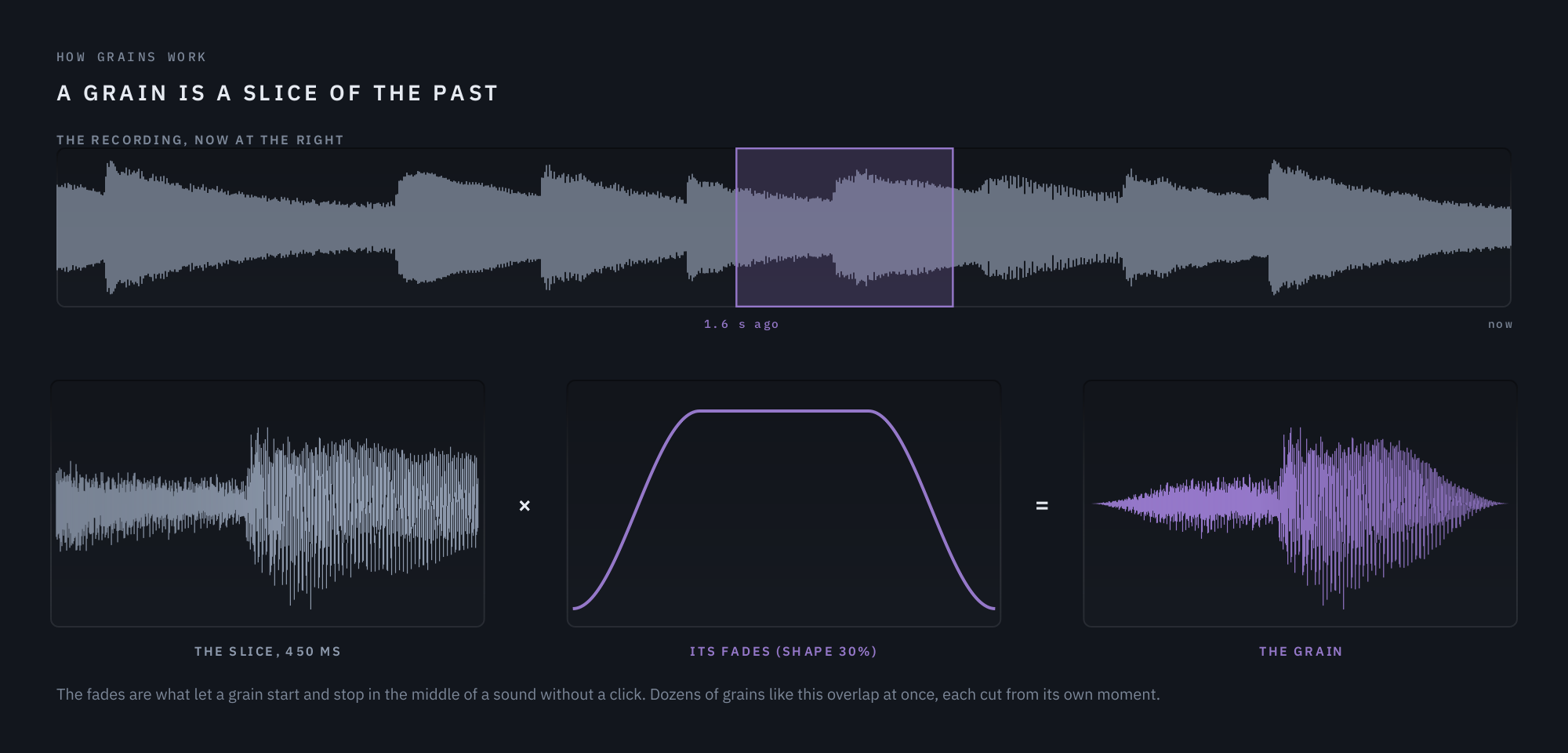
Granularscatter keeps a recording of the last few seconds. A grain is a short slice of that recording — from a few milliseconds to over a second — faded in and out so it starts and stops without a click, and played back. Dozens of grains overlap at once, and together they make a cloud.
Where a grain is cut from
Every grain reads from some moment behind now. Position is how close to now the newest grain may be; Jitter is how much further back grains may start. Close and tight, the cloud follows the phrase you are playing; far and wide, it becomes a haze of what was played seconds ago.
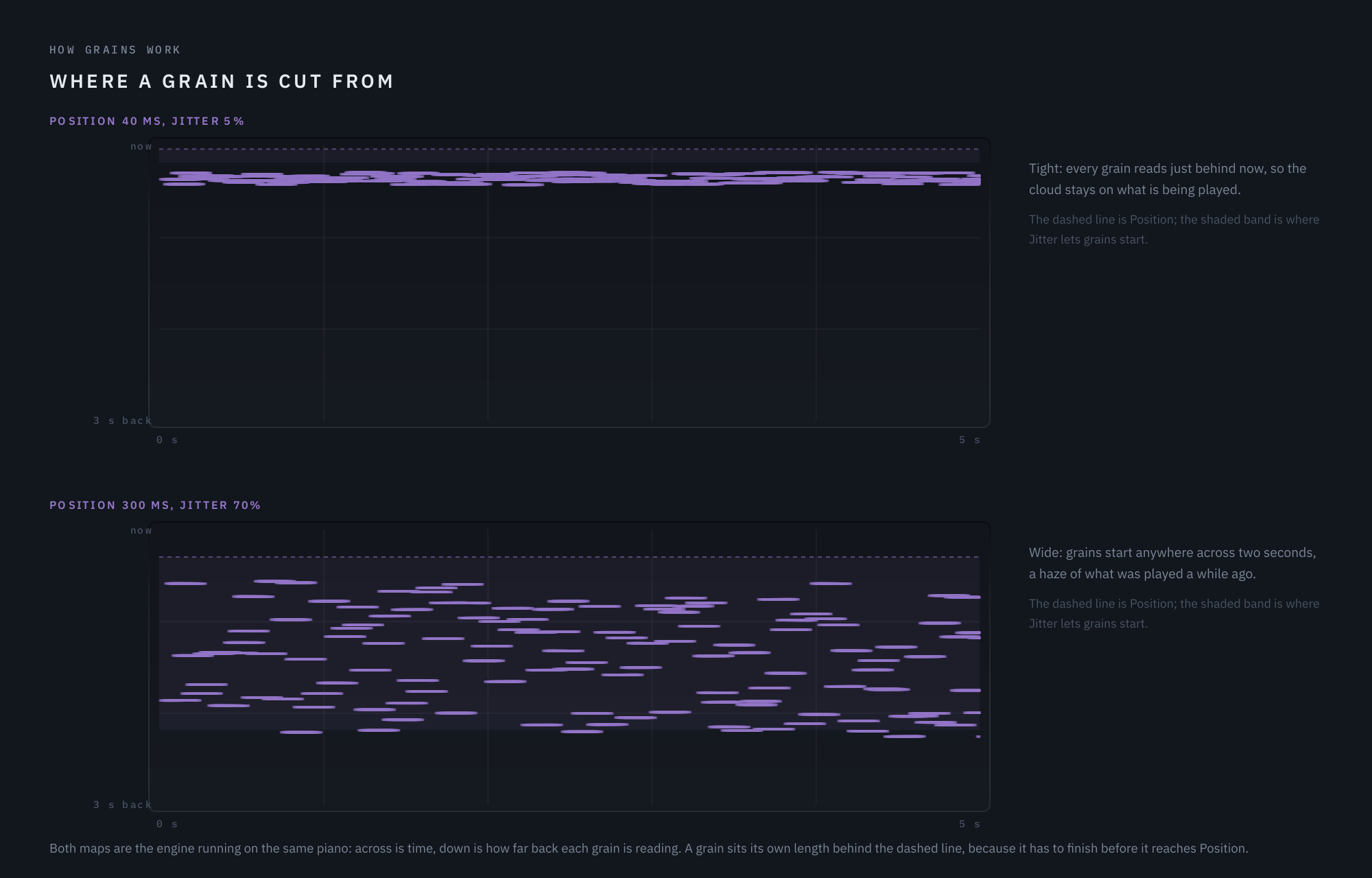
Both maps above are the engine itself. Each grain sits a little further back than Position, by its own length: a grain has to finish reading before it reaches the Position line. So longer grains sit further back, and the display on the panel draws the same thing.
How many, and how long
Long grains overlapping slowly make a smooth wash; short grains overlapping densely make a fizz or a texture. Grain moves between the two while keeping the cloud’s level steady. Grains spawned at random moments make a continuous, turbulent cloud; grains spawned on a beat make a pulse — that is what Density’s note button does.
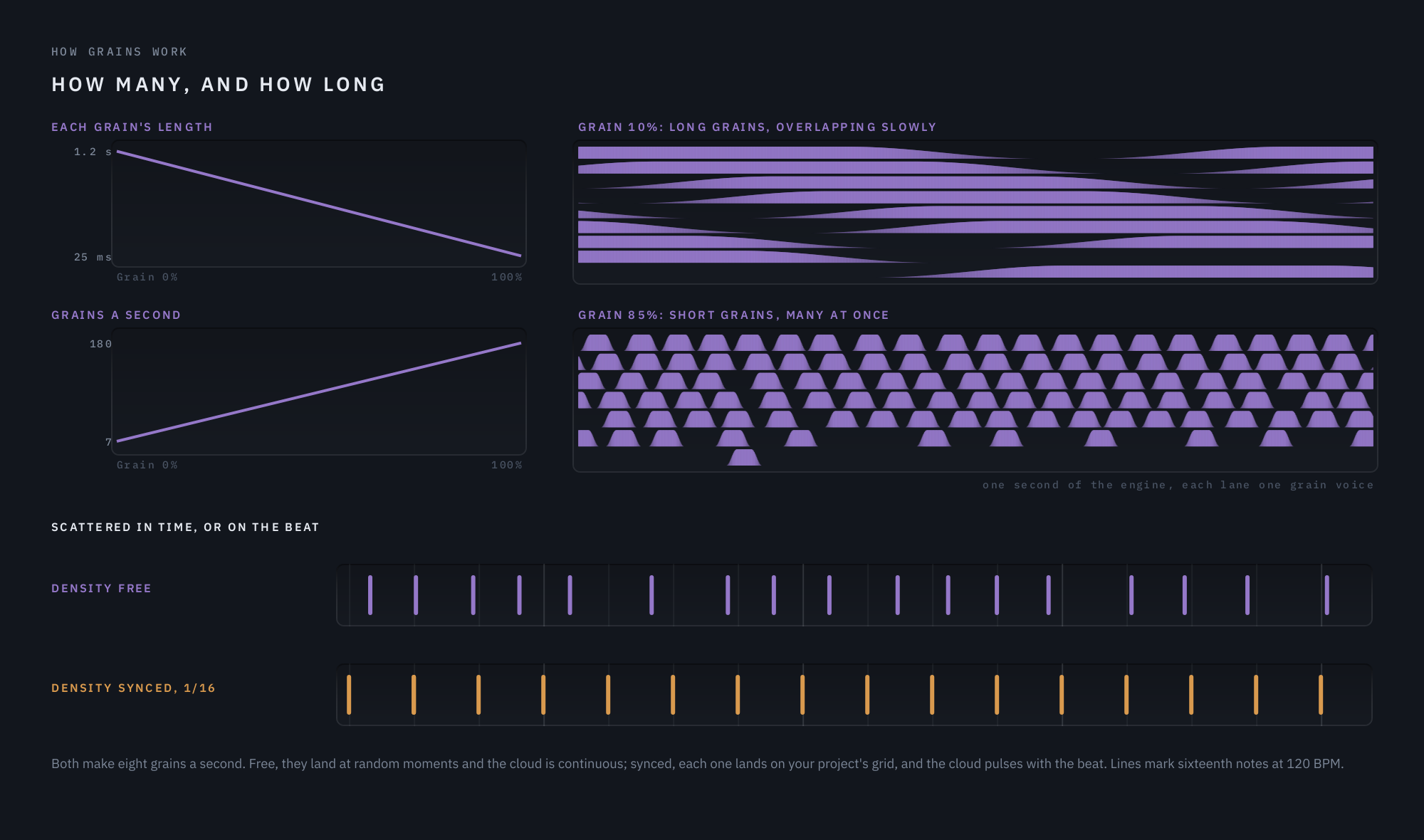
Grain turns both at once: from grains of 1.2 seconds, about seven a second, to grains of 25 milliseconds, 180 a second. Density then sets more or fewer grains around that, and Size (on the Advanced page) longer or shorter ones.
Pitch
A grain played faster than it was recorded sounds higher, and slower sounds lower. Shimmer decides how many grains are pitched, Tune by how much, and Chord gives each pitched grain a note of a chord to choose from. Drift adds a small random pitch to every grain, which thickens the cloud like a chorus.
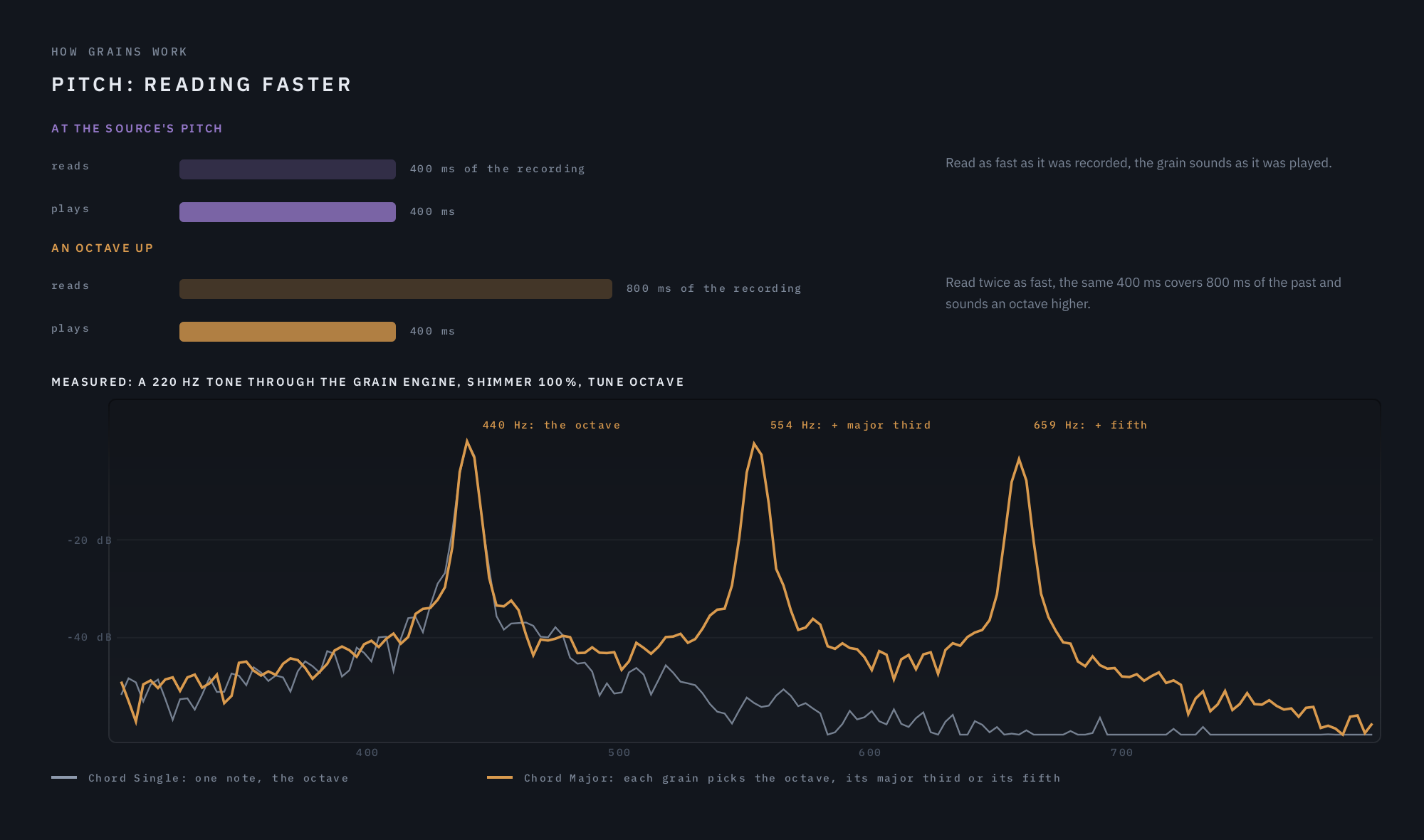
The spectrum above is measured: a steady 220 Hz tone through the grain engine with every grain shimmered an octave up. With Chord on Single there is one peak, at 440 Hz. With Chord on Major each grain picks the octave, its major third or its fifth, and the three peaks appear side by side.
The edges
How a grain fades in and out changes its sound: short fades are grittier and more percussive, long ones smoother. That is Shape, on the Advanced page.
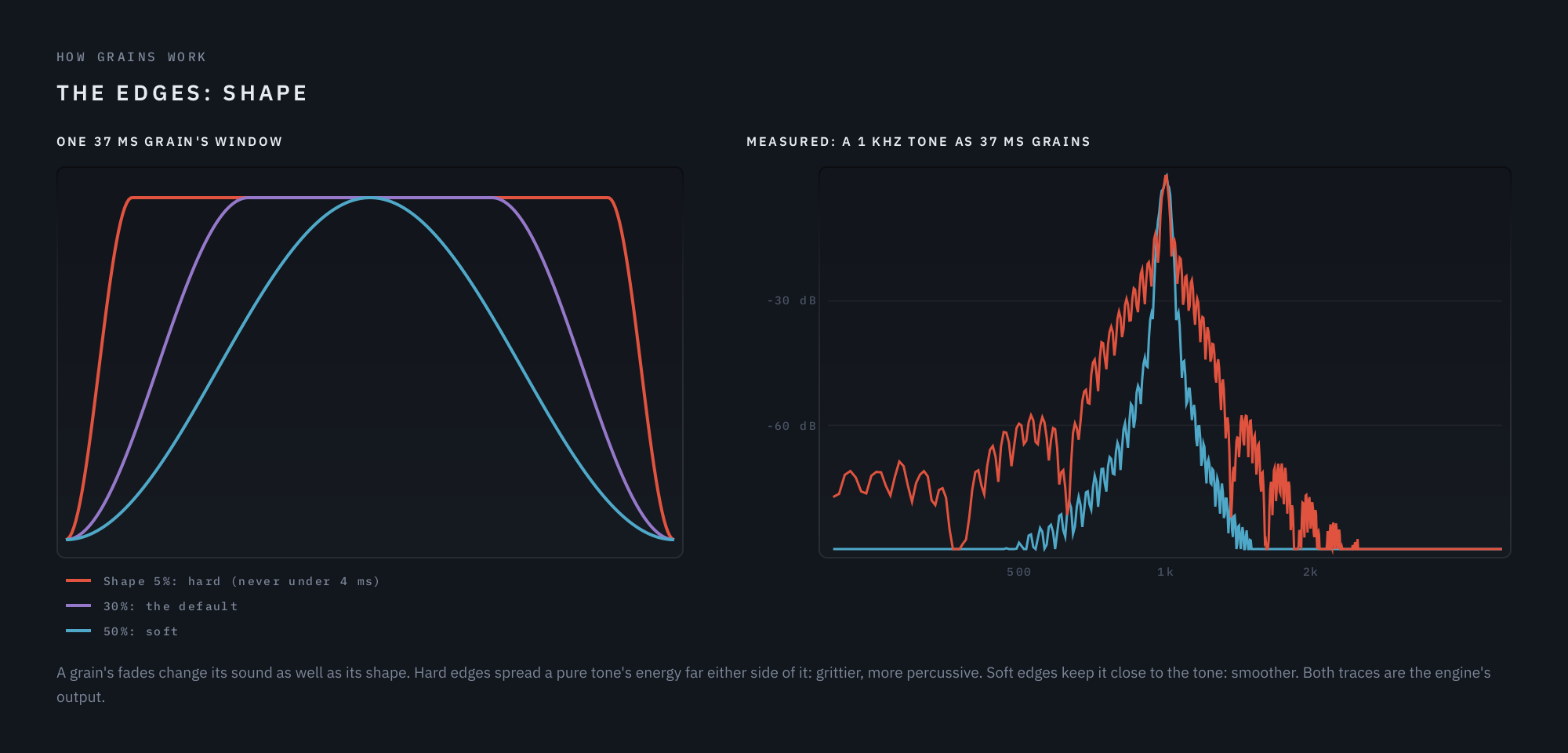
A hard edge spreads a pure tone’s energy far either side of its pitch, which is heard as grit and click; a soft edge keeps the energy close to the tone. However hard you set it, a fade is never shorter than 4 ms, so even the hardest edge is a quick fade rather than a cut.
03 Where to put it
After a reverb or delay
This is where Granularscatter is most at home. A reverb’s tail sounds much the same wherever you slice it, so grains cut from it read as a shimmering bloom growing out of the space. Start with the Post-Reverb presets.
On a dry source
On a voice, a guitar or keys, keep Position short and Jitter low and the cloud stays on what you are playing. Raise Ducking so the cloud sits behind the phrase and swells into the gaps. Start with the Vocals, Keys & Pads and Guitar presets.
On drums and loops
Switch Density to a note value and the grains land on the grid. Add Repeat for stutters and Reverse for swells into the beat. Start with the Drums & Loops presets.
04 Signal flow
- Tone and Low Cut shape what the grains record, not the finished cloud — so with Feedback on, every pass through the loop is darker and thinner than the last.
- Focus and Burst listen to your input, not to the cloud: the grains follow what is being played now.
- Ducking and the Dynamic EQ touch only the cloud, never the dry signal.
- Mix is equal-power, and at 0 the output is the input, sample for sample. There is no latency.
05 The panel
Three pages share one header, one display and the Output section. Main holds Grains, Pitch, Follow, Texture and Output. Advanced holds the finer grain controls and how the cloud responds. EQ holds the three-band Dynamic EQ. The ADVANCED and EQ buttons sit at the bottom left. The version and build number are in About Granularscatter… in the menu.
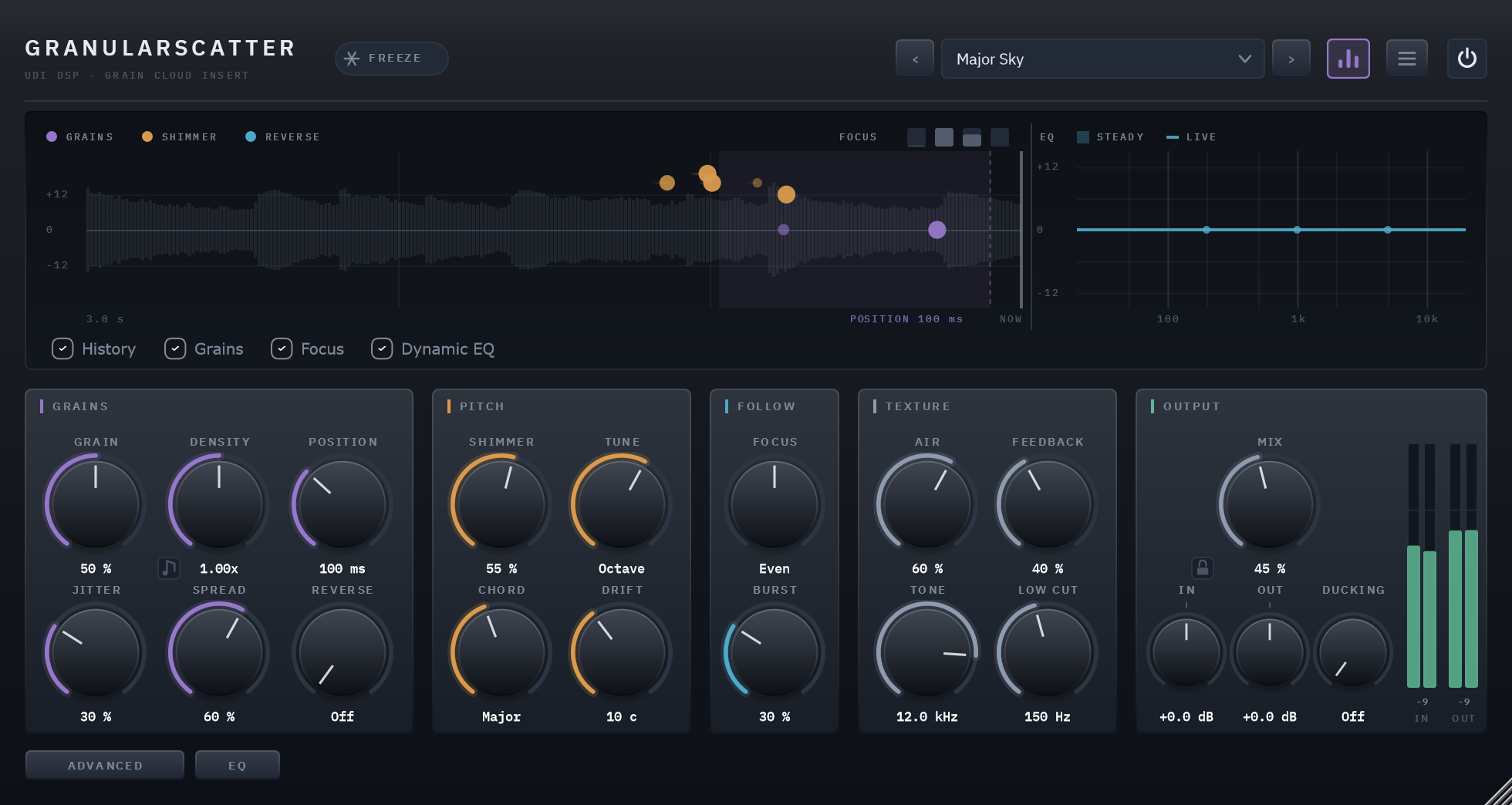
The main page: the grain field above Grains, Pitch, Follow, Texture and Output.
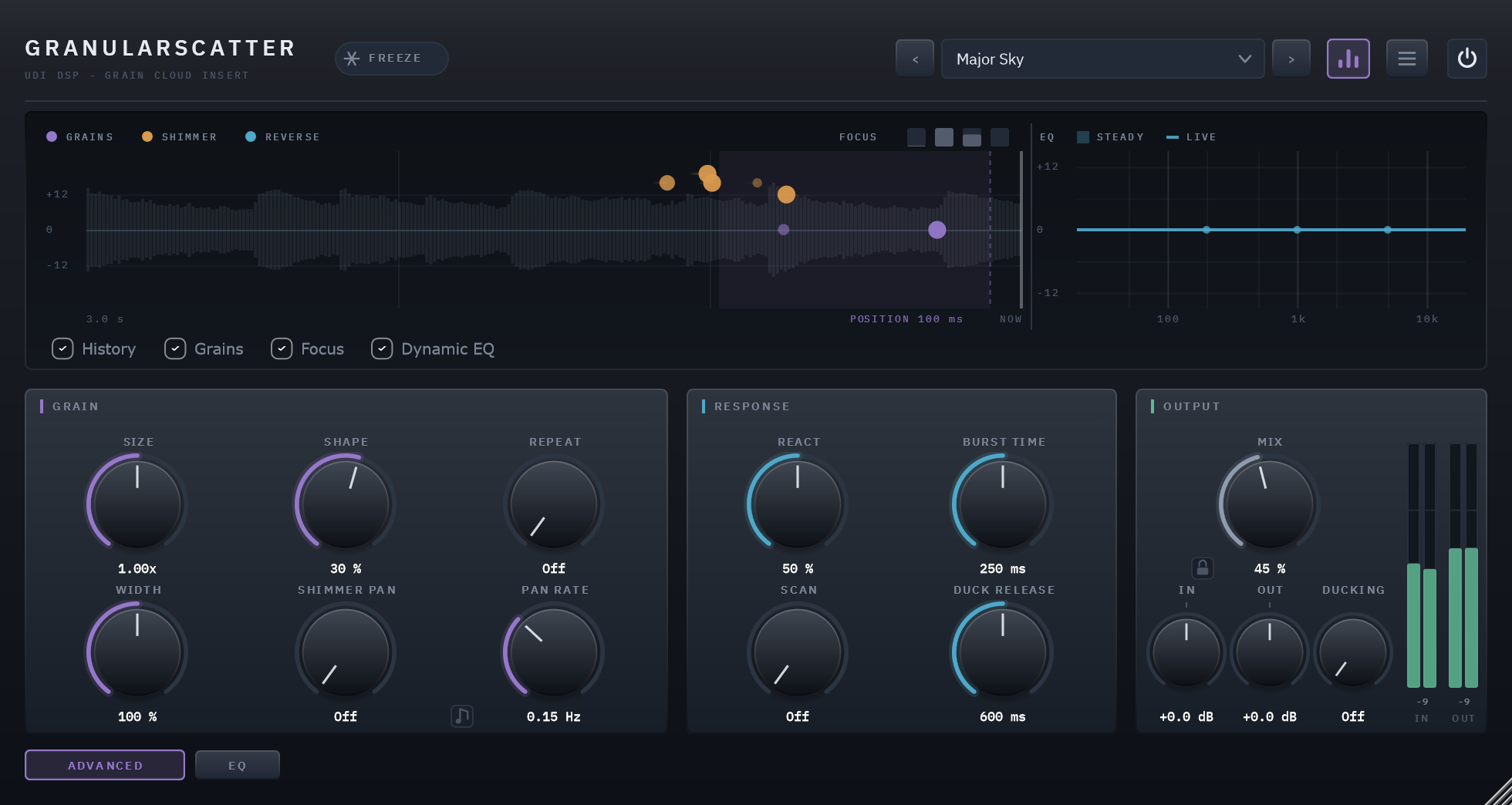
The Advanced page, behind the ADVANCED button.
The header
From the left: the name and FREEZE. From the right: the power switch (a bypass with a 20 ms crossfade), the menu, the visualizer button (hides the display and shrinks the window), and the preset field with its arrows. The menu holds Panel Size, User Guide, Show Tooltips, Show Visualizer, Copy Diagnostics, Activate, Check for Updates (once activated) and About.
Reading the grain field
The display is the grain engine, drawn as it runs.
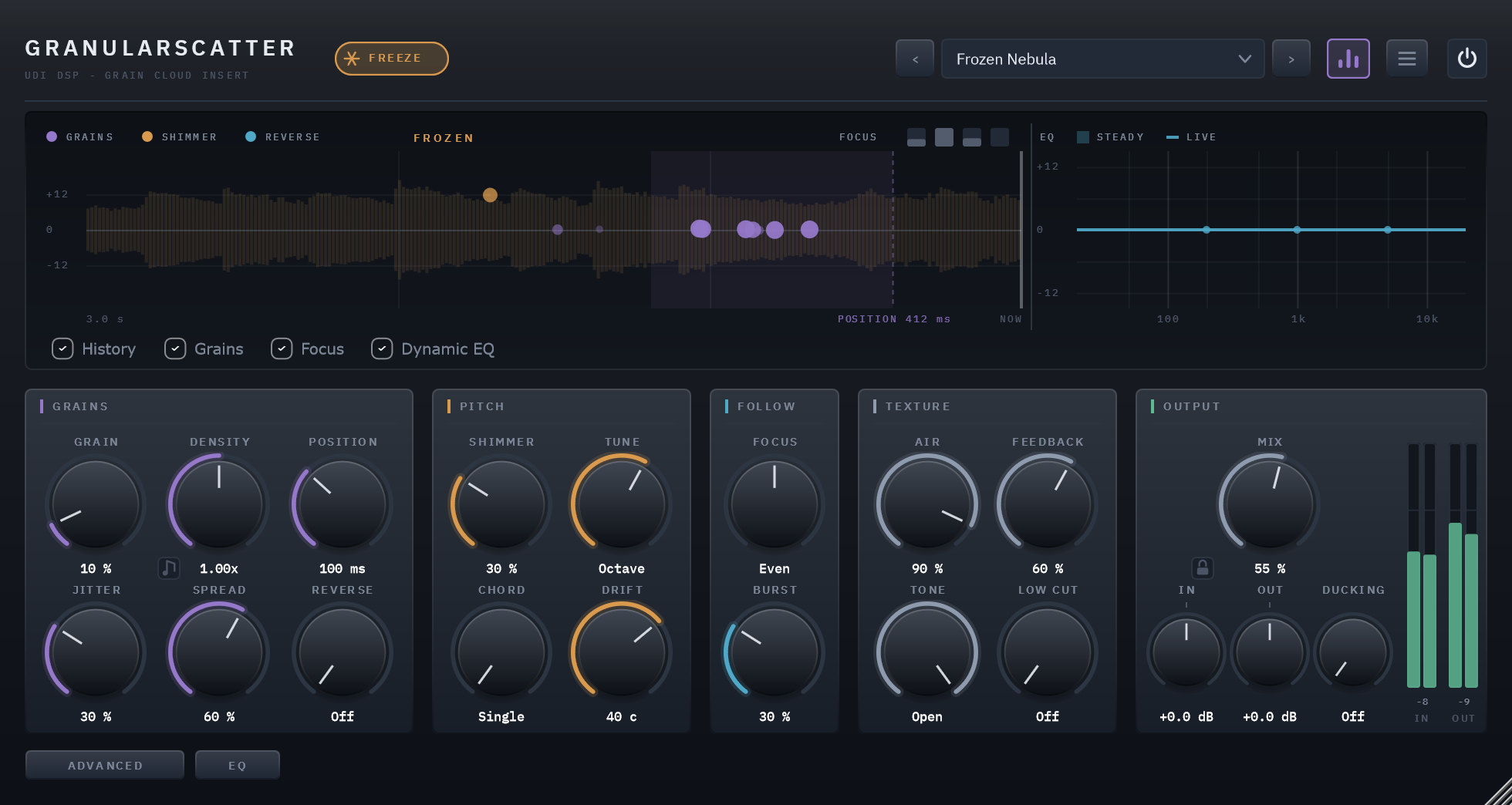
Frozen: the recording stands still, and the grains keep playing it.
- Time runs right to left. NOW is the right edge; the left edge is three seconds ago, as far back as a grain can read.
- The recording is the grey envelope behind everything, scrolling left as you play. Frozen, it stands still and turns amber.
- Each grain is a dot where it is reading, higher for a higher pitch — the lines mark unison and an octave either way. Purple grains play at the source’s pitch, amber ones were pitched by Shimmer, cyan ones play backwards. A dot is brightest at the middle of its grain.
- The dashed line is Position, and the shaded span is where Jitter lets grains start.
- FOCUS, top right: the four frequency bands as Granularscatter hears your input, lit toward the side Focus draws from.
- The EQ strip at the right shows the Dynamic EQ’s curve.
The checkboxes under the display turn each layer on and off.
Presets
The preset field shows the loaded preset, with a dot beside its name once you change anything. Click it for the preset menu: the Factory presets in categories, your own presets under User, and Save, Save As, Delete and Open Preset Folder. A slash in a name you save files it in a folder. See chapter 07. To try presets at your own blend and level, close the padlock beside Mix first: Mix, In and Out then stay where you set them (chapter 06, Lock).
Resizing
Drag the bottom-right corner, or choose a Panel Size from the menu. The panel keeps its proportions.
Trial and activation
Granularscatter comes with a free 14-day trial. The first time you open it, a card offers it: Try or activate Granularscatter. Click Start trial or activate to start the trial, or to use a licence you’ve bought; both happen through a quick sign-in in your browser. You can open the same card at any time from the badge in the header or Activate… in the menu.
The badge in the middle of the header shows where you are:
| Badge | What it means |
|---|---|
| START TRIAL | No trial yet. Granularscatter runs in demo mode. Click it to start your trial. |
| TRIAL 12D | In the trial, with the days left. Everything works. |
| DEMO | The trial has ended. Granularscatter runs in demo mode. Click it to activate a licence. |
| (no badge) | Licensed. |
In demo mode a short burst of noise plays after every 45 seconds or so of audio, in renders too, at a level that follows the music. Activating removes the badge and the noise.
06 Controls
Listed in the order they appear on the panel, page by page, left to right and top to bottom. Every control is automatable and saved with your project. Hover over any control for a tooltip.
GRAINS — Where in time grains are cut, how long they are and how many. Top left of the main page.
Grain
0 – 100% · default 50%
Long, sparse grains at the left (about 1.2 s, a few a second) to short, dense ones at the right (25 ms, up to 180 a second). The level stays steady across its travel.
Density
Free: 0.50x – 2.00x · default 1.00x, Free · Synced: 1/32 – 8 Bars
How many grains. Free: more or fewer around what Grain sets, spawned at random moments. Click the note button to sync: Straight, Triplet or Dotted, and the knob then picks a note value — one grain per note, on your project’s grid.
Position
0 ms – 2.00 s · default 100 ms
How close to now the newest grain reads. Short keeps the cloud on the playing; long makes it an echo of a moment ago.
Jitter
0 – 100% · default 30%
How much further back a grain may start. Low keeps the cloud together; high smears it across seconds.
Spread
0 – 100% · default 60%
How widely the grains spread across the stereo field.
Reverse
Off – 100% · default Off
The share of grains played backwards.
PITCH — What pitch the grains sound at.
Shimmer
Off – 100% · default 25%
The share of grains pitched by Tune and Chord. At 30%, three grains in ten are pitched.
Tune
Oct down, 5th, m7, Octave, Oct+5th, 2 Oct · default Octave
The shimmer interval. The knob snaps to these intervals; hold Shift to tune between them.
Chord
Single, Fifth, Octaves, Major, Minor, Sus4, Maj7, Min7 · default Single
Each shimmered grain picks a note of this chord, stacked on Tune: with Tune at Octave and Chord at Major, grains land an octave, an octave and a major third, and an octave and a fifth above the source. Single is Tune alone. A chord sounds in key when your source sits on its root.
Drift
0 – 100 cents · default 10 c
Random pitch on every grain, either way. A little thickens the cloud like a chorus; a lot is unpitched and wobbly.
FOLLOW — Grains that follow what you play.
Focus
Quiet 100% – Even – Loud 100% · default Even
Which frequencies the grains are made of, following your input. Toward Loud, grains are drawn from and coloured toward the bands that dominate what you play; toward Quiet, from the ones in the background, which is airier. Even treats every band alike.
Burst
Off – 100% · default 30%
Each new note bursts the grains denser and shorter for a moment, so attacks scatter.
TEXTURE — What the grains are made of, and how they blend.
Air
Off – 100% · default 30%
Washes the grains through a diffuser, from separate grains to a smooth cloud.
Feedback
Off – 100% · default Off
Records the cloud back into itself, so it keeps ringing after you stop. Granularscatter never lets what it feeds back grow louder than what you played, and the ring always dies away once you stop — within about half a minute at 100%.
Tone
1.0 kHz – Open · default Open
A high cut on what the grains record. With Feedback, every pass gets darker.
Low Cut
Off – 1000 Hz · default Off
A low cut on what the grains record, so the cloud stays clear of the bass.
OUTPUT — Right of the sections, on every page.
Mix
0 – 100% · default 50%
Dry/wet balance, equal power. At 0 the output is the input, sample for sample. At 50% the cloud and the dry sit at about the same level.
In / Out
-24 – +24 dB · default 0 dB
Input trim, before the grains; output trim, after everything else.
Ducking
Off – 100% · default Off
The cloud ducks while you play and swells back in the gaps. Its release is on the Advanced page.
Lock
Locked / Unlocked · default Unlocked
The small padlock beside Mix’s value. Locked, loading a preset — from the preset menu, its arrows, or your DAW’s own preset list — leaves Mix, In and Out where you have them, so you can step through presets at the blend and level you have already set and hear each one in your track. Everything else in the preset loads as usual, Ducking included. A preset you save still stores Mix, In and Out, and moving them does not mark the loaded preset modified while the lock is on. The lock belongs to this instance of the plugin and is saved with your session, never in a preset.
Freeze
Off / On · in the header
Holds the recording: the grains keep playing the moment you froze, and new input no longer reaches them. Combine with Scan to keep a frozen moment moving.
GRAIN — Advanced page.
Size
0.50x – 2.00x · default 1.00x
How long each grain is, around what Grain sets.
Shape
5 – 50% · default 30%
How much of each grain is fade: short fades are grittier and more percussive, long ones smoother.
Repeat
Off – 100% · default Off
The chance a grain replays the slice the grain before it played. With Density synced, a stutter.
Width
0 – 200% · default 100%
The cloud’s stereo width: 0 is mono, 100% as the grains land, 200% wider.
Shimmer Pan
Off – 100% · default Off
The shimmered grains sweep slowly from side to side.
Pan Rate
Free: 0.02 – 2.00 Hz · default 0.15 Hz · Synced: 1/32 – 8 Bars
How fast Shimmer Pan sweeps: in Hz when free; the note button syncs it to the tempo, one sweep per note value.
RESPONSE — Advanced page.
React
0 – 100% · default 50%
How fast and how strongly Focus follows the playing.
Burst Time
50 ms – 1.00 s · default 250 ms
How long a Burst takes to settle back.
Scan
Off – 100% · default Off
Position wanders slowly on its own, through up to a second and a half of the past. With Freeze, the held moment keeps changing.
Duck Release
50 ms – 2.00 s · default 600 ms
How long the cloud takes to swell back once you stop playing.
EQ — The EQ page.
Low / Mid / High — Static, Dynamic, Freq, Q
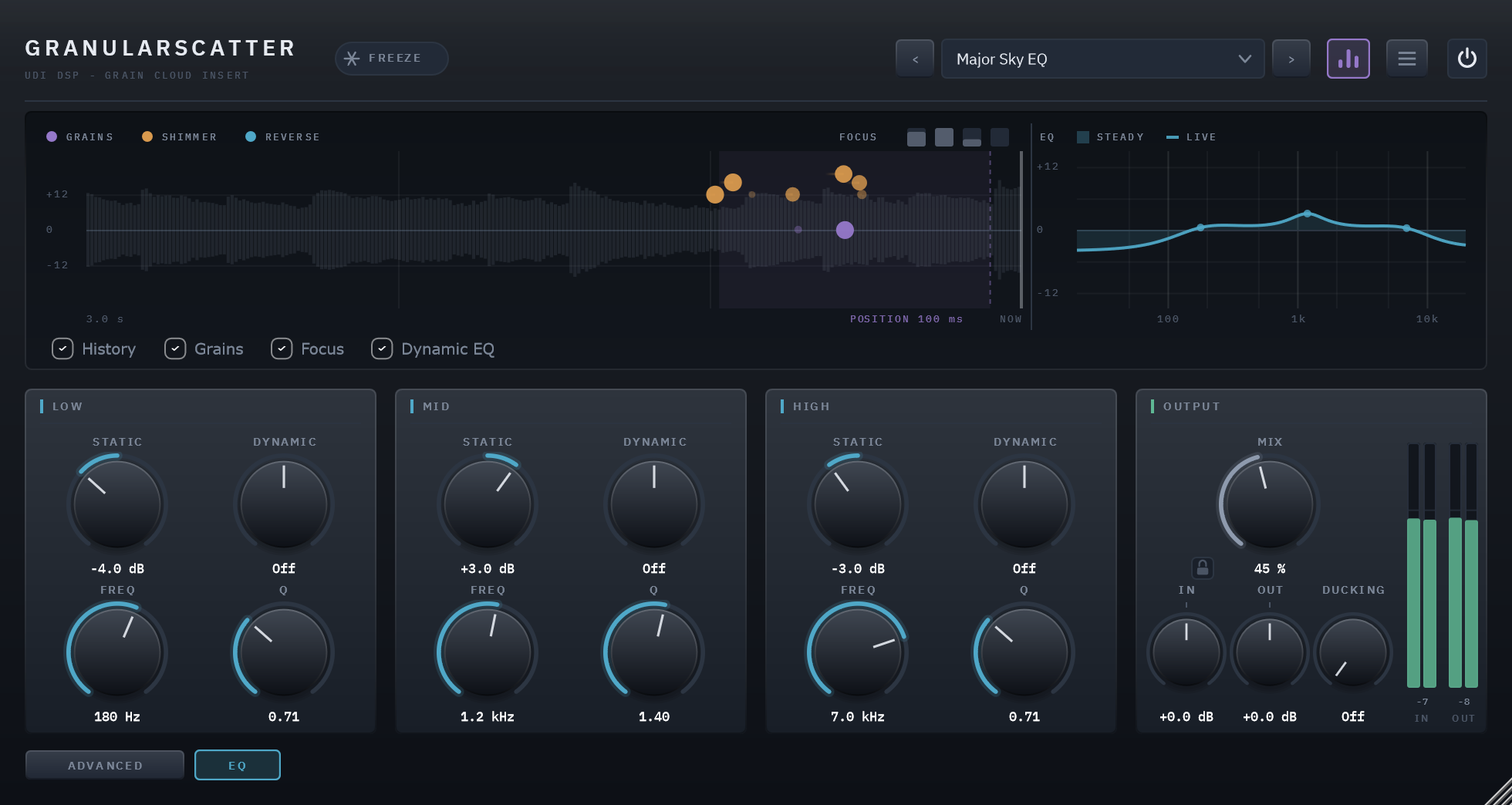
A three-band dynamic EQ on the cloud: a low shelf, a mid bell and a high shelf. Static is a steady boost or cut (±12 dB); Dynamic reacts to the band’s own level — below 0 it cuts the band when it gets loud, above 0 it boosts it; Freq and Q place and widen the band. Every band is neutral by default.
07 Presets
Loading any preset sets every control, so each is a complete starting point rather than a change to what you had — except Mix, In and Out while the Output section is locked (the padlock beside Mix, chapter 06), which stay where you set them. No preset turns Freeze on. The arrows either side of the preset field step through every preset in order. Every preset stays within about 2 dB of the loudness of what it was voiced on, so stepping through them is not a loudness contest.
| Category | Presets |
|---|---|
| Post-Reverb | Shimmer Halo, Octave Bloom, Fifth Glow, Dust Tail, Infinite Wash, Glass Cathedral |
| Vocals | Breath Cloud, Choir Behind, Whisper Trail, Harmony Spray, Doubler Haze |
| Keys & Pads | Soft Focus Pad, Major Sky, Minor Mist, Sus Drift, Music Box Dust, Seventh Heaven |
| Guitar | Ambient Strum, Octave Swell, Reverse Ghost Notes, Shoegaze Wall, Glass Harmonics |
| Drums & Loops | Grid Stutter, Triplet Scatter, Tape Dust Room, Reverse Fills, Glitch Burst |
| Sound Design | Frozen Nebula, Two Octave Sparks, Subterranean, Broken Radio, Granular Ocean, Pulse Cloud |
08 Technical specifications
| Format | VST3 (Windows x64), Standalone app included — AU / macOS not yet available |
| Channels | Mono in and out, or stereo in and out |
| Latency | 0 samples |
| Bypass | The power switch at the top right, a 20 ms crossfade |
| Engine | Up to 48 grains at once from a 6 s recording, reaching 3 s back; playback-rate pitch with cubic interpolation; a six-stage diffuser for Air |
| Timing | Grains and their controls are computed on a fixed 32-sample grid, so the sound is the same at any buffer size |
| Parameters | 49, all automatable |
| Factory presets | 33, in six categories, plus Default |
| CPU (measured) | 1.65% of one core at the defaults; 4.47% worst case — @ 48 kHz stereo, 512-sample blocks |
| Tail | 8 s, longer with Feedback, reported to the host |
| Licensing | Trial, then activation through Moonbase |
| Shares with the UDI DSP line | The grain engine (Ghostlight Pro, Echolight), Dynamic EQ, Ducking, preset system, licensing, UI toolkit |